

Photo Quality for Acrylic Prints — Resolution and Colour Basics
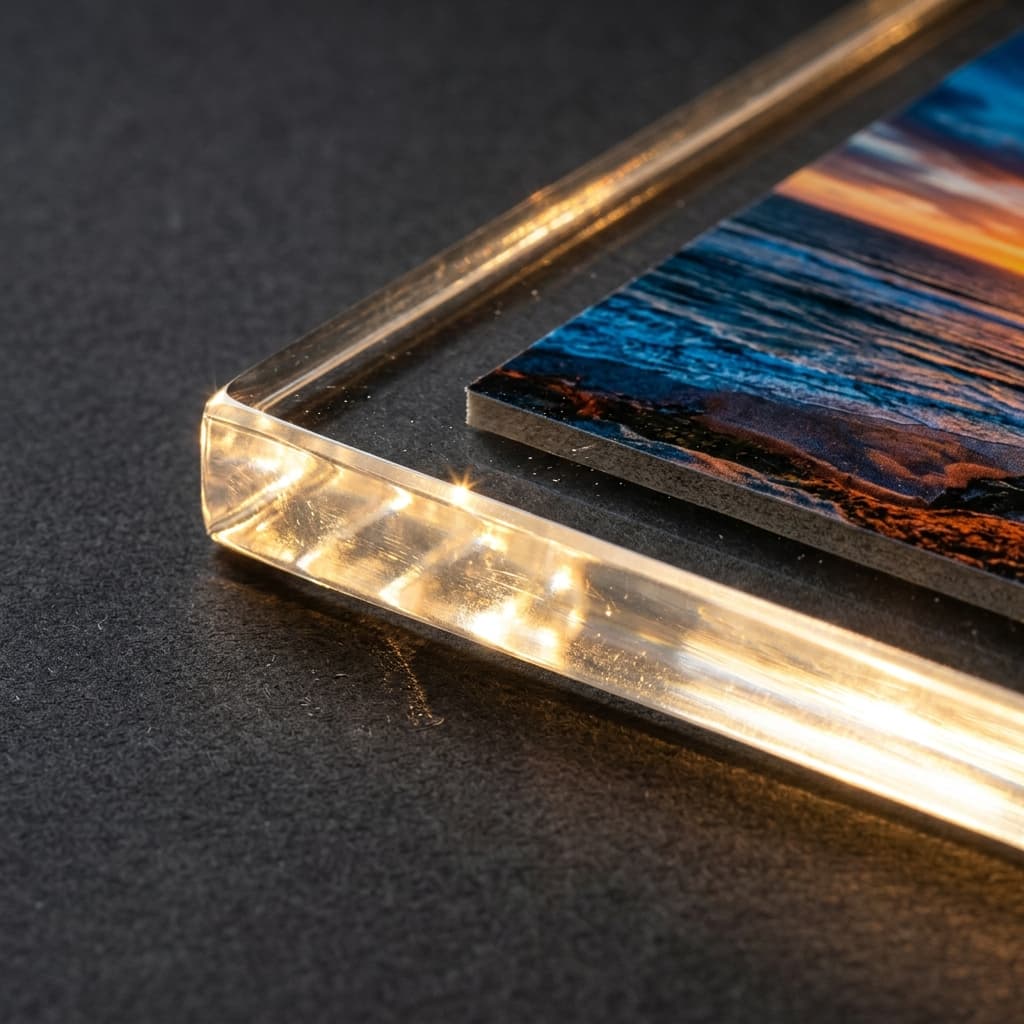
Acrylic prints amplify everything about a photo — the good and the bad. A high-quality phone photo on acrylic looks startlingly sharp. A heavily-compressed WhatsApp forward looks like a pixel-art screenshot. Here's how to know which you have before you order.
Resolution: the simple rule
For a sharp acrylic print, you need at least 200 pixels per inch at the final print size. Practical numbers:
- 8×10 inch print → at least 1600×2000 pixels (~3 megapixels)
- 12×18 inch print → at least 2400×3600 pixels (~9 megapixels)
- 16×20 inch print → at least 3200×4000 pixels (~12 megapixels)
- 24×36 inch print → at least 4800×7200 pixels (~35 megapixels)
For the 24×36 print specifically, most phone photos won't make it. You'll need a DSLR or a recent flagship phone shooting at maximum resolution (the 50MP modes that most people leave switched off by default).
How to check your photo's resolution
On a phone:
- iOS Photos: tap the (i) info button; resolution shows under the date.
- Android Gallery: tap photo info or properties; same data.
- Google Photos: tap the photo, then "details" — pixel dimensions are listed.
The dimensions are the two big numbers. If they're at least the target from the table above, you're good.
Why WhatsApp photos are usually too small
WhatsApp compresses photos to roughly 1600×1200 by default. A photo your friend sent you on WhatsApp is almost certainly compressed below acrylic-print quality. Always ask for the original via Google Photos, AirDrop, or email — never WhatsApp.
(There's a workaround in WhatsApp: send the image as a "Document" instead of as a photo. That preserves the original quality. Pass this tip along.)
Colour: a quick truth
Phones show photos brighter and more saturated than they really are. On an acrylic print, colours print exactly as the file actually is — which often looks slightly less vivid than the phone screen. We compensate during production, but if your photo looks borderline-too-dark on your phone, it'll look properly-too-dark on the print. When in doubt, send us the photo and we'll check.
Photos that look bad but can be saved
- Low-light grainy photos — modern denoising tools can clean these surprisingly well at small print sizes.
- Slightly soft photos — sharpen during prep; works up to about 12×18.
- Slightly tilted horizons — straighten and crop tighter.
Photos that can't be saved
- Heavily filtered photos (the original is gone)
- Screenshots of Instagram posts
- Photos where the subject is out of focus (motion blur, missed focus)
- Old scanned photos at 1MP — at large size, they look pointillist
If you're not sure whether your photo will print well, send it to us on WhatsApp. We'll check the resolution, look for compression artefacts, and tell you honestly — before you commit to printing.
Order an acrylic print on WhatsApp
Send us your photo — we'll show you how it'll look as an acrylic print.
Chat on WhatsApp →